
NexaFile AI Product Guide
Practical guides for individuals, freelancers/professionals and teams: upload or scan, cloud import, AI analysis, evidence verification, confidence, rules, review, reporting, access control and billing.
Understand AI Credits before you start
See the credits included with each plan, how to track your balance and how to buy more when needed.
View AI Credits guideExplore the complete cloud document AI workflow
From PDFs, invoices and contracts to Google Drive, OneDrive, SharePoint, rules and human review.
Explore Cloud Document AIOne document workflow, from individual work to teams
You do not need to be a large company to use NexaFile. The same product supports personal documents, freelance/professional work and multi-user workflows.
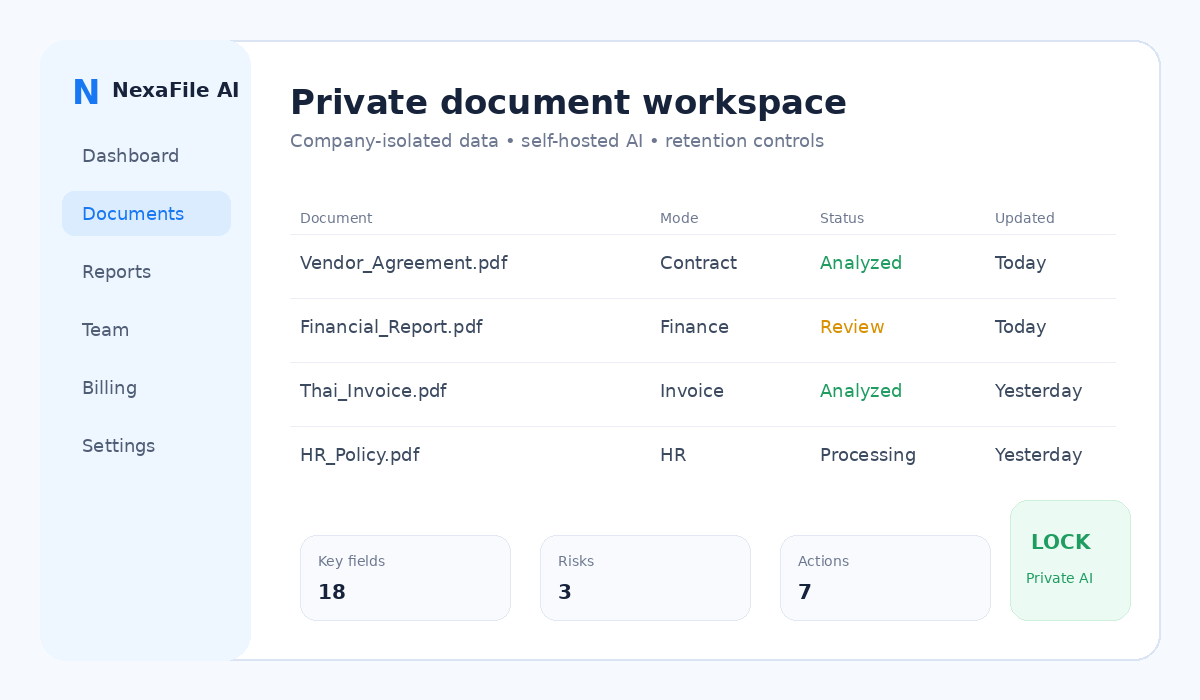
Understand important documents faster
Rental agreements, employment contracts, insurance, bills, personal records and scans. Upload directly, use Paper Scan, or choose files from Google Drive/OneDrive.
Guide for individuals →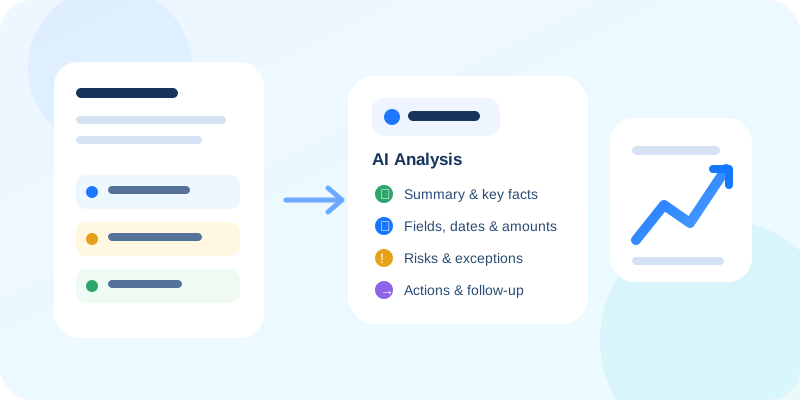
Turn client documents into structured work
Review proposals, contracts, invoices, reports and forms; extract fields, dates, amounts, risks and actions to reduce manual reading.
Guide for professionals →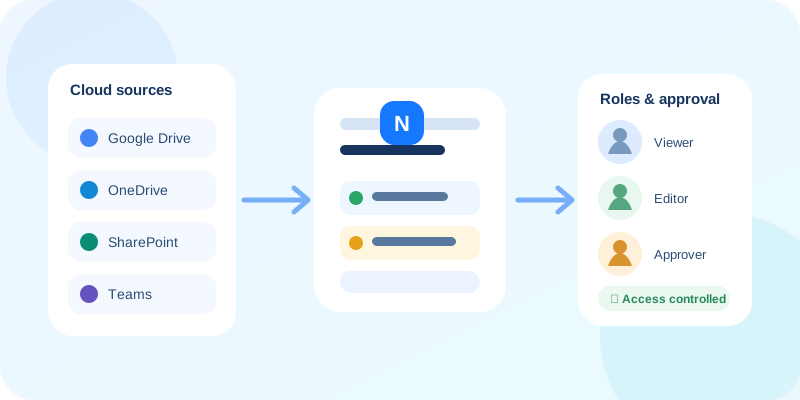
Roles, rules and approval workflows
Multi-user workspaces, departments, Department Managers, company rules, review/approval, reporting and SharePoint/Microsoft 365 for controlled workflows.
Guide for teams →Choose the document AI workflow that matches your task
Use the focused workflows below for three common jobs: PDF analysis, contract review and invoice data extraction.
AI PDF analyzer
Summarize PDFs and extract structured data, risks, dates and evidence-backed actions.
Explore PDF analysis →AI contract review
Identify clauses, obligations, key dates, renewals and issues that need human review.
Explore contract review →AI invoice data extraction
Extract vendor, invoice ID, PO, dates, tax, totals and line items for review before export.
Explore invoice extraction →How NexaFile works
Start with a paper document, a local file, or a file from Google Drive, OneDrive or SharePoint. NexaFile normalizes the content, analyzes it with AI, applies rules when needed and moves the result into a workflow for human review before use.
More than OCR — a complete Document Intelligence workflow
PDF, DOCX, XLSX, PPTX, JPG/JPEG, PNG, WEBP, HEIC/HEIF, CSV, TXT and scanned documents can enter the same workspace. Files can be uploaded directly or selected from Google Drive, OneDrive and SharePoint. AI output is organized into summaries, fields, dates, amounts, risks, actions and evidence for review.
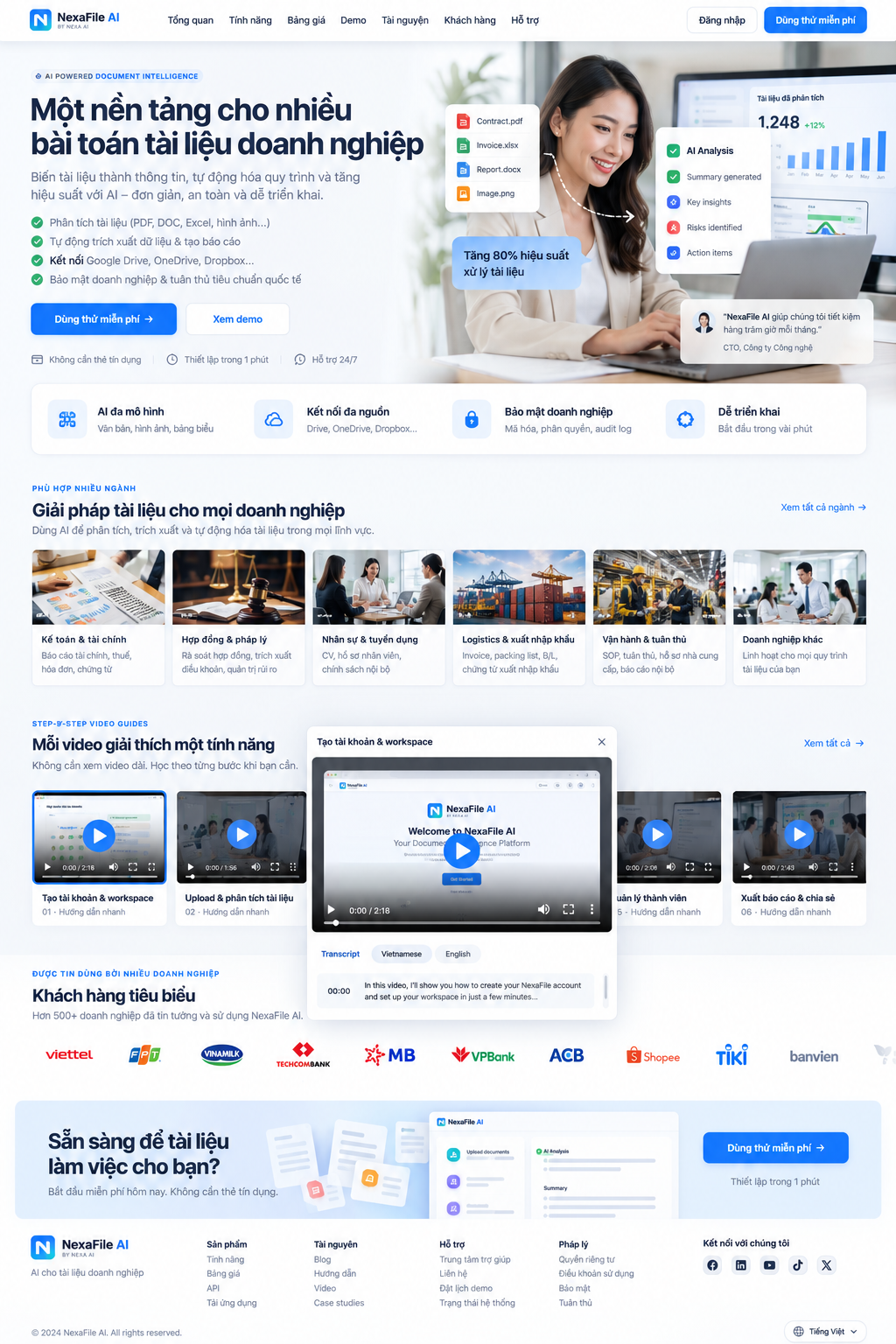
Choose documents from where you already work
All three cloud sources follow the same principle: connect the user’s own account, choose files, then import them into NexaFile.

Google Drive
Choose files with Google Picker. NexaFile imports only the files you explicitly select.

OneDrive
Works with personal Outlook.com/Hotmail or Microsoft 365, for both personal and work documents.

SharePoint
Choose SharePoint files with an organizational Microsoft 365 account, without entering a site URL.

Paper Scan
Capture physical paper with the camera, review the image and analyze it.
Read the full guide →Drive / Cloud
Connect Google Drive, OneDrive or SharePoint, browse folders/sites and select files for direct import into the analysis workflow.
Read the full guide →Document Intelligence
AI summarizes content and extracts fields, dates, amounts, risks, actions and evidence for human review.
Read the full guide →
Company Rules & Validation
Apply rules when you need criteria-based checks and return PASS / WARNING / FAIL with referenced evidence.
Read the full guide →
Reports & Export
Aggregate results and export PDF, DOCX, XLSX, CSV or JSON where supported.
Read the full guide →Team, Departments & Roles
For multi-user workspaces: Owner/Admin/Member roles, department managers, assignment and per-user document privacy.
Read the full guide →
Billing, Upgrade & Downgrade
Monthly/annual billing, current-period tracking, upgrades and Owner-managed plan controls.
Read the full guide →
AI Support & Tickets
AI support answers product questions in the user’s language and can escalate to [email protected] when needed.
Read the full guide →Import documents from Google Drive, OneDrive and SharePoint
Google Drive, OneDrive and SharePoint all feed the same analysis workflow after a user selects a file. OneDrive supports personal Microsoft accounts such as Outlook.com/Hotmail and Microsoft 365; SharePoint requires an account with access to an organization site/library.
- Connect the cloud source with the user’s own account. For SharePoint, the Microsoft 365 tenant may require an IT Admin to approve NexaFile once; admin consent does not automatically grant employees access to SharePoint sites.
- A SharePoint Site Owner/Admin must grant the employee access to the required site/library. The employee then reconnects with their own account; NexaFile uses delegated read-only access and does not request write permission.
- Browse folders/sites and choose the files to analyze.
- NexaFile downloads the selected files and normalizes supported formats.
- Files enter the same AI workflow as direct upload or Paper Scan.
When do you need team and approval workflows?
Individuals and freelancers can use a simple flow: bring in a document → AI analyzes → review it yourself. Teams can add assignments, departments, rules and Department Managers for controlled approval.
- A user uploads, scans or imports a document from cloud storage.
- AI analyzes the document and produces structured results.
- The document creator reviews first; content is not automatically exposed to Owners/Admins/Managers.
- When collaboration is needed, the document is assigned/shared with the appropriate reviewer.
- Teams can apply rules, revisions and approvals as part of the workflow.
Scale: buy more AI Credits and paid renewal
Scale supports up to 100 members. During a paid period, when AI Credits are running low the workspace is warned; when there are not enough AI Credits for a task, Owner/Admin can buy more AI Credits to continue. Buying more does not increase the member limit, reset storage or move the original period end.
At the period end, the next 30-day plan period must be paid to continue new AI processing. Until payment is confirmed, new AI processing pauses while existing data and results remain available.
